Admin dashboard
The dashboard (/admin) lists every upload still stored on the instance, newest first. It's only reachable after signing in.
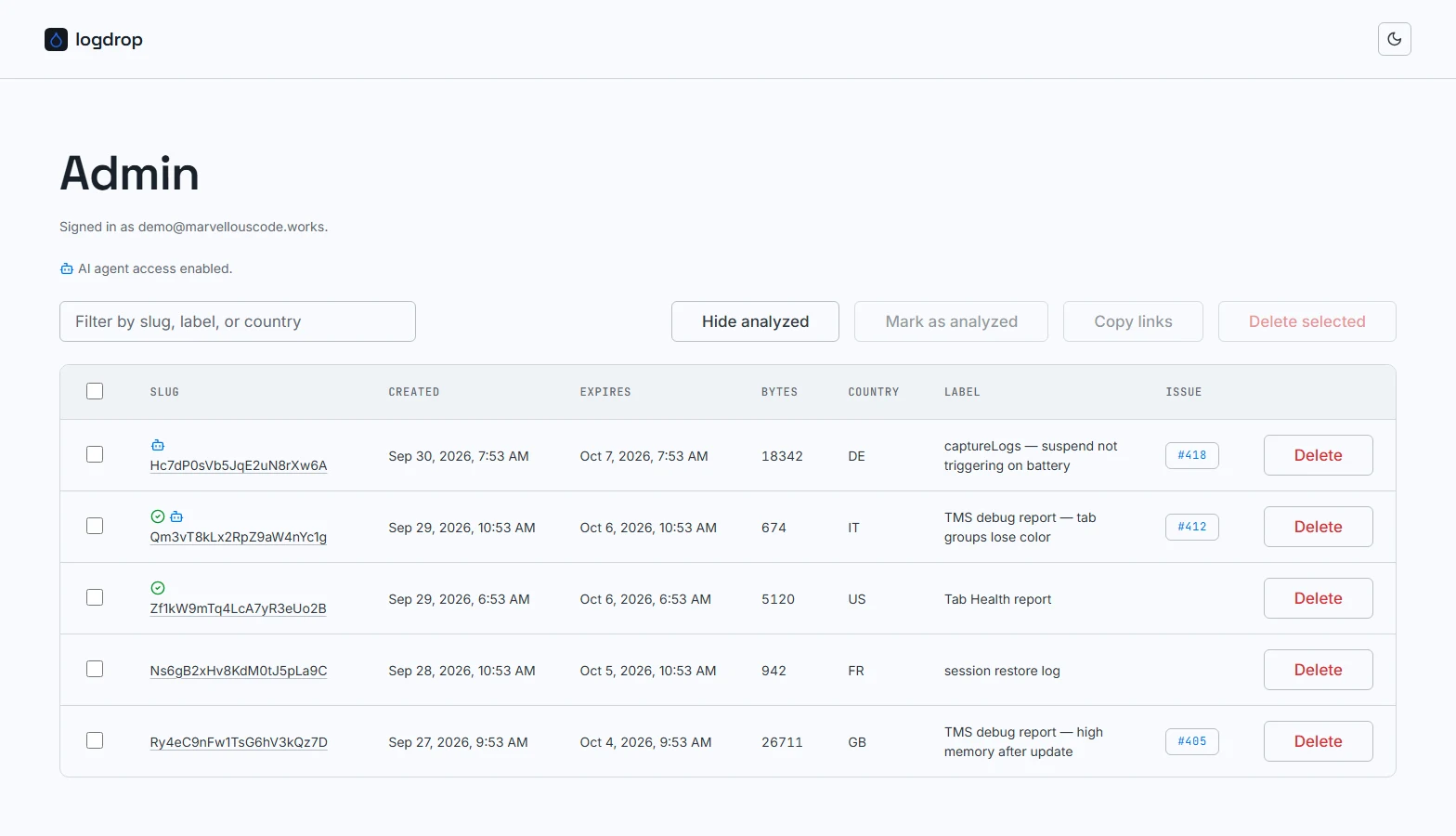
Header
- Signed in as shows the admin email of the current session.
- Sign out, at the top right next to the theme toggle, ends the session. See Signing out.
- AI agent access appears right below, with a robot icon. It reads AI agent access enabled. when you have a personal agent token (or the instance still has the deprecated
AGENT_API_TOKENset), and AI agent access not set up. otherwise. Click Manage your token to show or hide the controls described in AI agent access.
AI agent access
From logdrop 1.3.0, each admin manages their own token for the Agent API here, with no environment variable or redeploy:
- Generate token (when you don't have one) creates it and shows it once, in a dialog with a Copy token button. Copy it before clicking Done: it can't be shown again.
- Once you have a token, the block shows it masked (
ld_agent_…a1b2), with when it was created and when an agent last used it (never used until the first read). - Regenerate replaces it after a confirmation; the old token stops working immediately.
- Revoke deletes it after a confirmation; agents using it get
401from then on.
You only ever see and manage your own token. If the deprecated instance-wide AGENT_API_TOKEN is still set, a note below the buttons says so: see Legacy instance-wide token for how to migrate.
Upload table
| Column | Content |
|---|---|
| Checkbox | Selects the row for bulk actions. The header checkbox selects every visible row. |
| Slug | The upload's ID, linking to its log view. Badges appear above it, see below. |
| Created / Expires | Upload time and scheduled expiry, shown in your browser's locale and timezone. |
| Bytes | Size of the uploaded text. |
| Country | Uploader's country code, from Vercel's edge headers (may be empty). |
| Label | The optional label the uploader typed. |
| Issue | The linked GitHub issue as a clickable #123 chip, if one was given. |
| Delete | Deletes that single upload, after a confirmation. |
Badges
| Badge | Meaning |
|---|---|
| Green checkmark | The upload was marked as analyzed by a maintainer. Who did it, and when, is shown in the log view. |
| Blue robot | An AI agent has read the upload through the Agent API at least once. How many times, and when last, is shown in the log view. |
Both badges can appear on the same row.
The cleanup job runs once a day (03:00 UTC), so an upload can stay listed for up to a day after its expiry time. The Agent API already refuses expired uploads in the meantime.
Filter and toolbar
- Filter (text box) narrows the table as you type, matching the slug, label or country.
- Hide analyzed hides every row with the analyzed checkmark, so only work still to do is left. Click it again (Show analyzed) to bring them back. It combines with the text filter.
Bulk actions
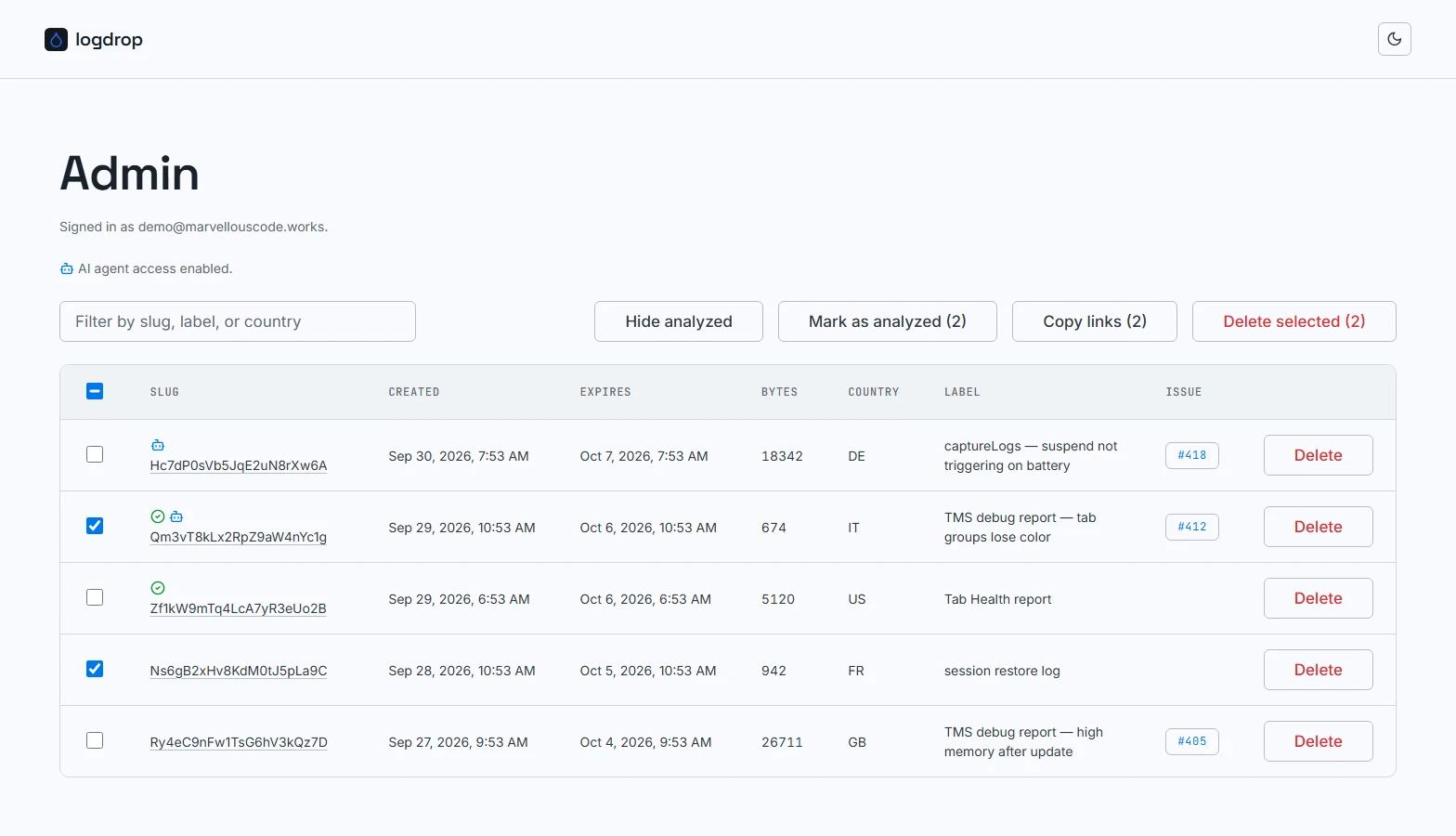
Select one or more rows and the toolbar buttons enable, each showing how many rows it will act on:
- Mark as analyzed (N) marks every selected upload as analyzed in one click, with no confirmation, and records you as the one who did it. The checkmark badge appears on each row, and the rows are deselected once done. To unmark, open the single upload's log view.
- Copy links (N) copies the selected uploads' links to the clipboard, one per line, e.g. to paste into an issue or a note.
- Delete selected (N) deletes every selected upload, after an on-screen confirmation ("Delete N upload(s)? This can't be undone.").
Mark and Copy flash green with a checkmark when they succeed.
Deleting is permanent. There's no trash or undo, the content and its metadata are removed from storage immediately.
Theme
The sun/moon button in the top-right corner switches between light and dark theme. The choice is remembered in your browser; until you pick one, logdrop follows your system setting.