Log view
Every upload has its own page at /r/<slug>, the same link the uploader shared. It opens only for a signed-in maintainer; anyone else is redirected to the sign-in page, and a maintainer who signs in from there comes straight back to this upload.
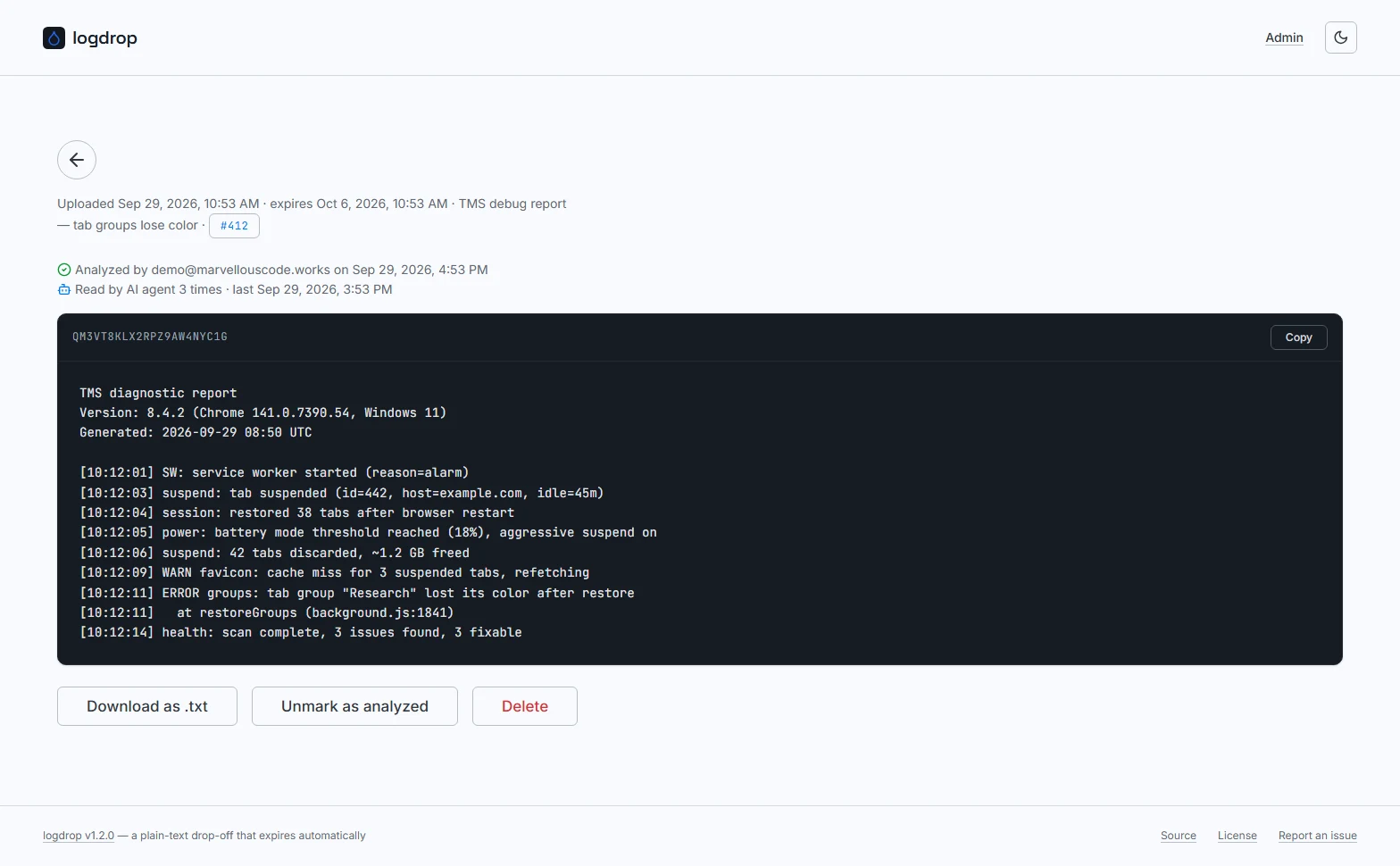
Details
The back-arrow button at the top returns to a freshly loaded dashboard.
Below it, a single line shows when the upload was created, when it expires, its label (if any) and the linked GitHub issue chip (if any). Times are shown in your browser's locale and timezone.
Activity
Right under the details, logdrop shows what has happened to the upload so far:
- Analyzed by
<admin email>on<date>, with a green checkmark, once a maintainer marked it as analyzed (here or in bulk from the dashboard). Hidden while the upload isn't analyzed. - Read by AI agent N time(s) · last
<date>, with a robot icon, once an AI agent read it through the Agent API. Every successful agent read increments the count.
If neither has happened, the block isn't shown at all.
Who/when and agent reads are recorded starting with logdrop 1.2.0. Uploads analyzed with an earlier version just show Analyzed, without author and date.
Content
The text is shown as-is in a monospaced block, labeled with the slug.
- Copy (top-right of the block) copies the whole text to the clipboard, flashing green on success.
- Download as .txt saves it as
logdrop-<slug>.txt.
Actions
- Mark as analyzed / Unmark as analyzed toggles the analyzed state with a single click, no confirmation. Marking records you and the current time; unmarking clears both. The activity line updates immediately, no reload needed.
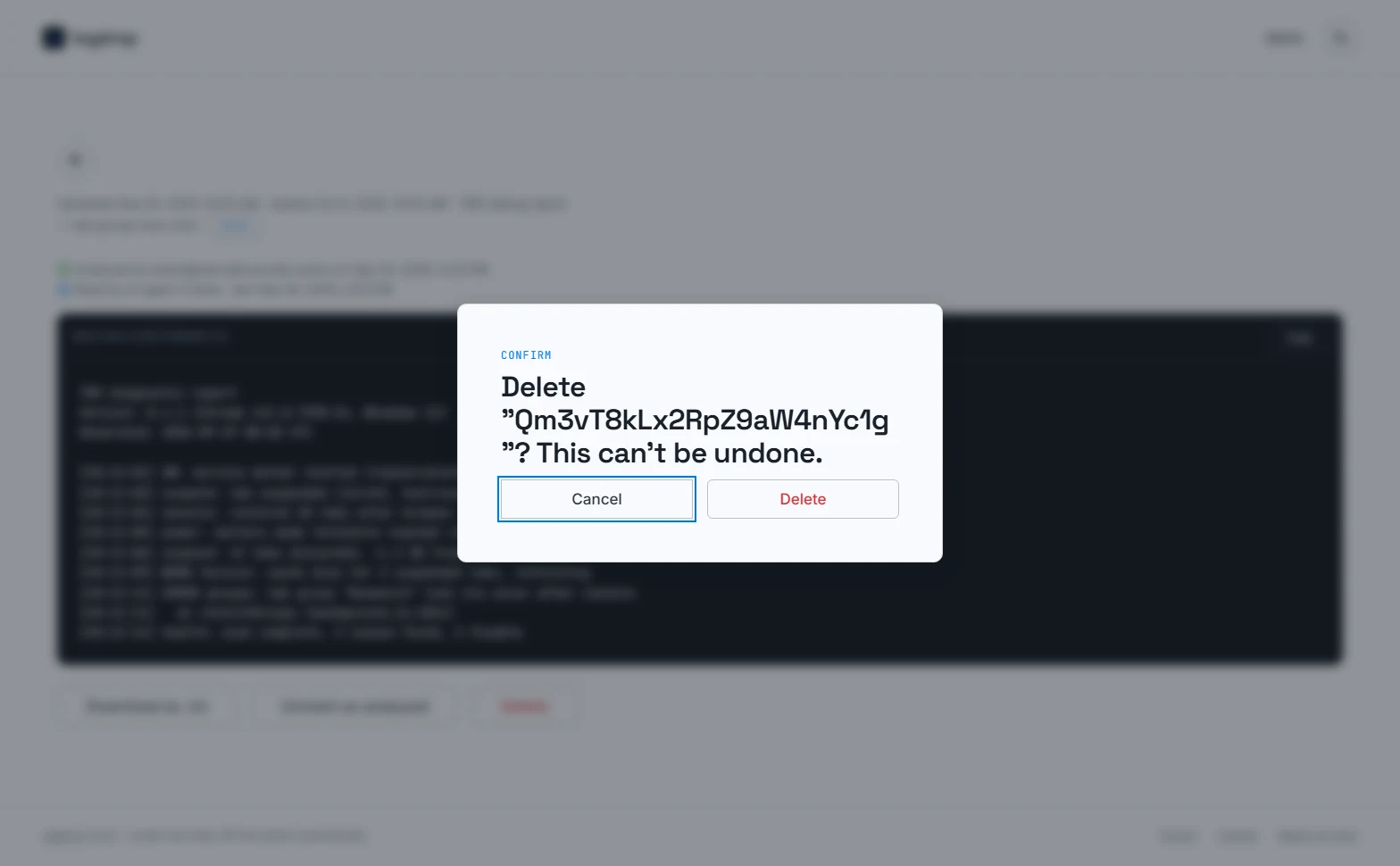
- Delete removes the upload permanently, after a confirmation, then takes you back to the dashboard.
If your session expired while the page was open, clicking Mark as analyzed sends you to the sign-in page and back here afterwards.