System & recovery pages
Besides the extension's main pages (Settings, Session Management, Backup & Sync, Tab Health, News, About), TMS opens a handful of small, single-purpose pages automatically at specific moments, after an update, after a crash, or when a permission is missing. This page explains what each one is and what to do when you see it.
The suspended tab page
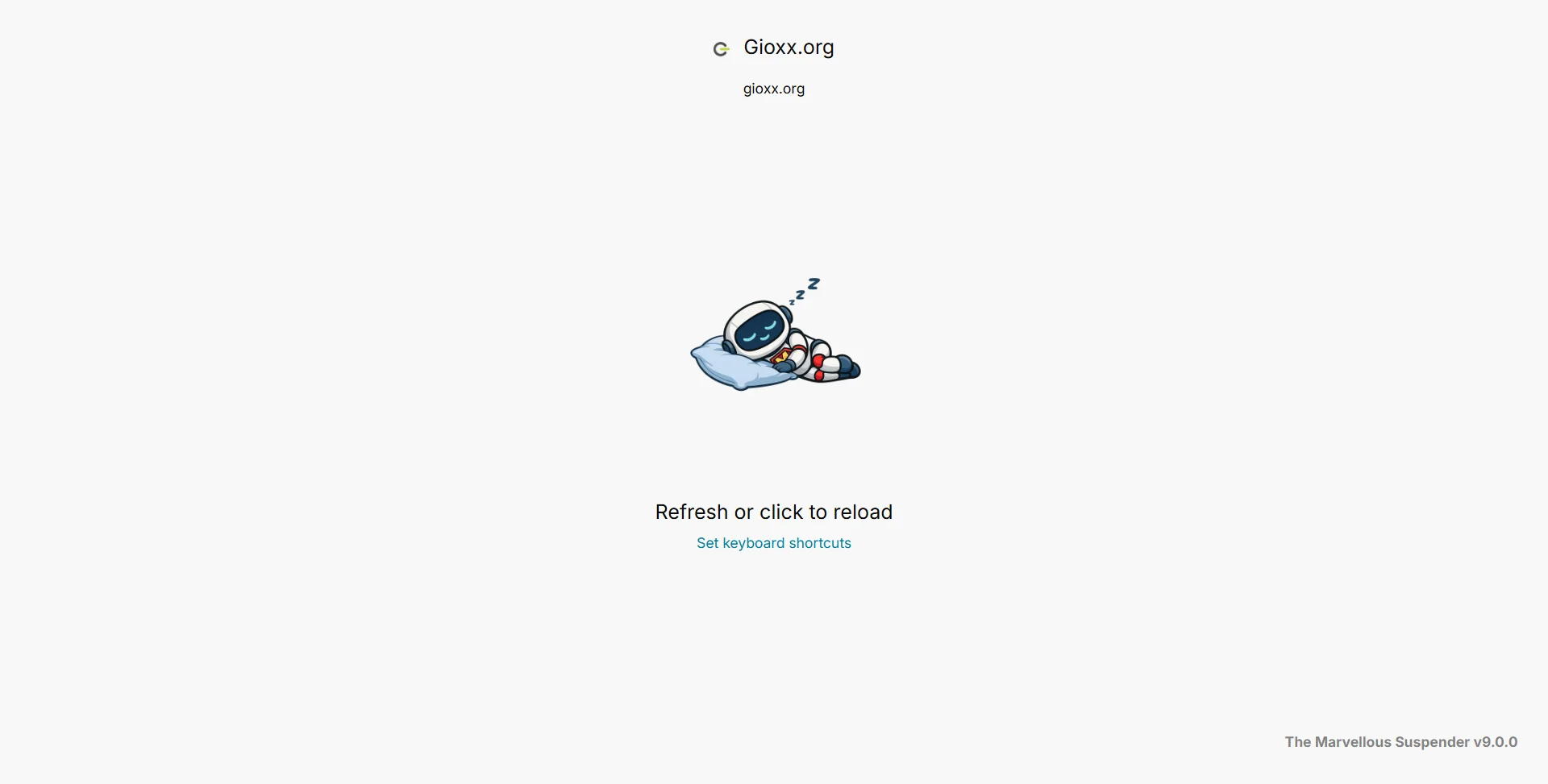
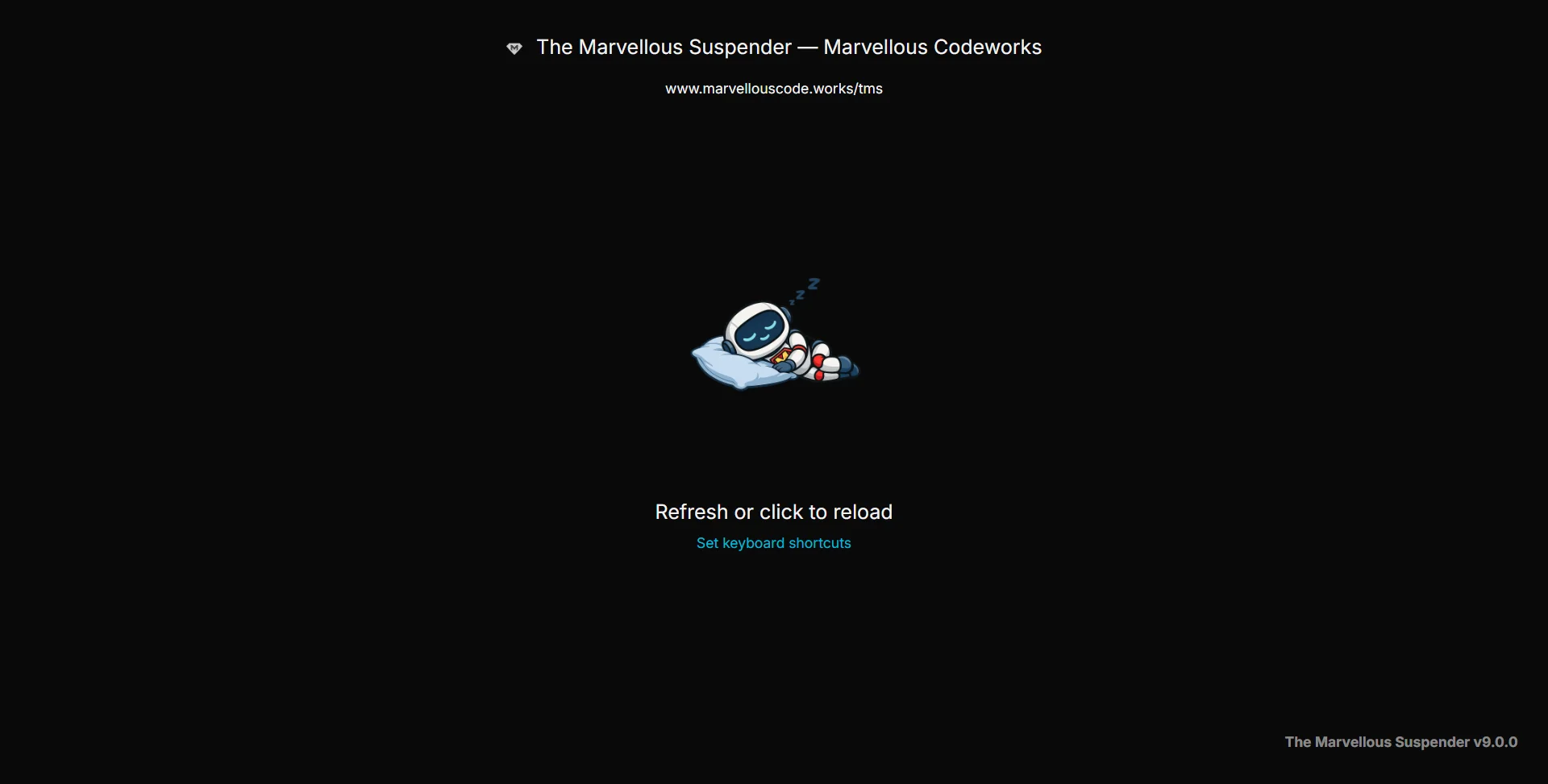
The page shown in place of every tab TMS suspends (suspended.html). It shows the site's favicon and title, the original URL, and a hint on how to reload it (click anywhere, or use the tab-toggle keyboard shortcut). Its appearance (light/dark, screenshot preview) is controlled from Settings → Suspended Tabs.
Dark theme:
If you see "This site cannot be reached" on what should be a suspended tab, see My suspended tab says "This site cannot be reached".
Update screens
When TMS updates itself:
- Pre-update backup prompt (
update.html), shown before the update is applied, if TMS believes tabs might be at risk. It offers Export backup (saves the current session as a.jsonfile, same as Session Management → Export) and confirms that a recovery restore point was also created automatically, viewable afterwards from Session Management → Recent sessions. - Update in progress / completed (
updated.html), shown after the update finishes. While tabs are being restored it shows a progress state; once done, it confirms success and links to Session Management for anything that needs manual attention. For major version updates it may show extra release-specific notes.
You do not need to act on either screen unless something looks wrong, both are informational.
Recovery screen
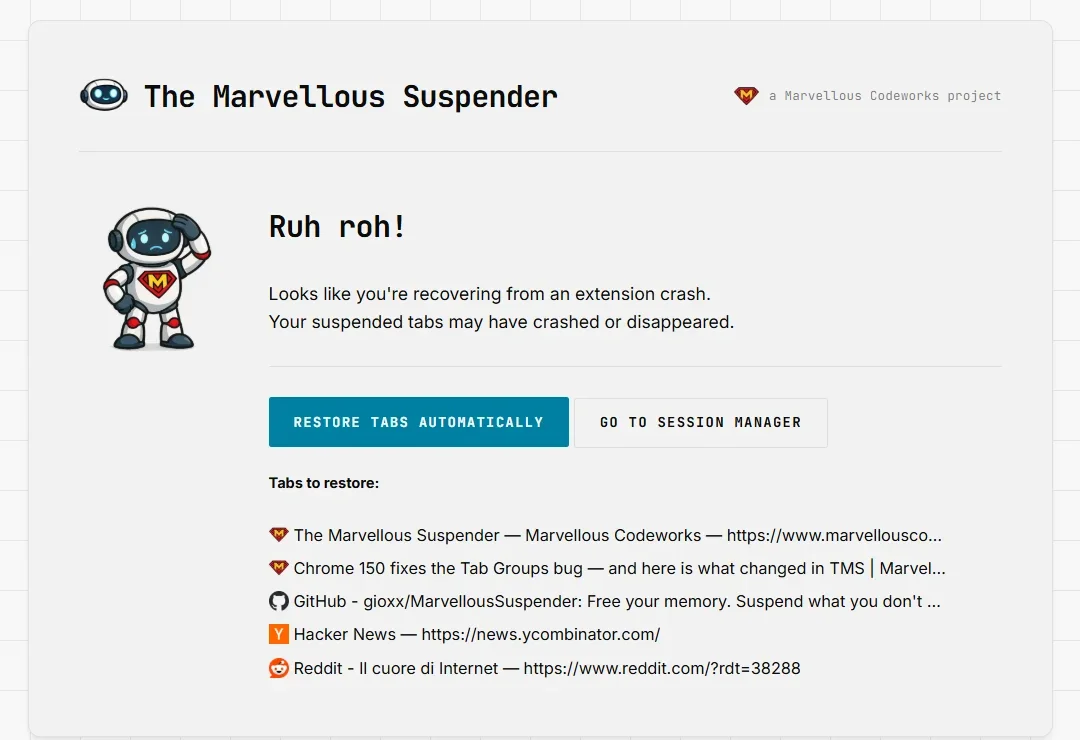
recovery.html appears if TMS detects that not all previously-open tabs came back after a browser restart or crash. It lists the tabs it believes are missing and offers:
- Restore tabs automatically: reopens the listed tabs for you
- Manage manually: jumps to Session Management so you can pick specific windows/tabs yourself instead
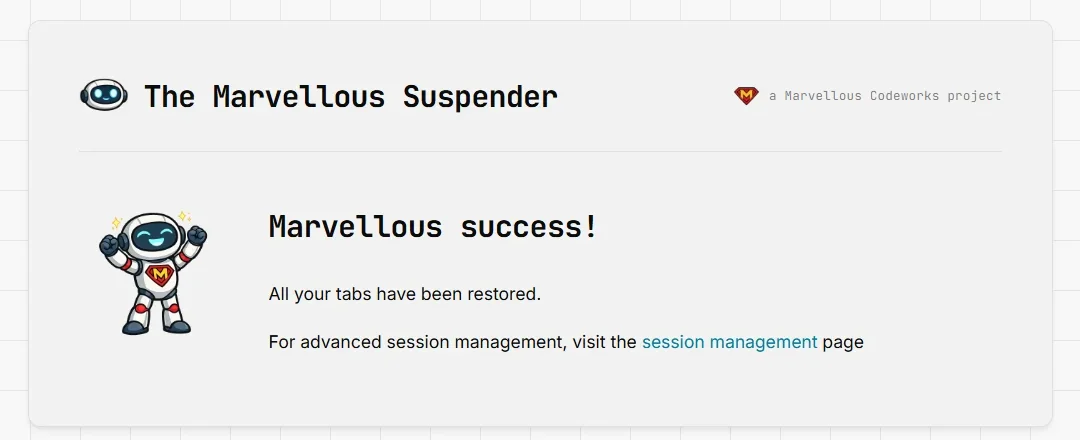
Once restoration finishes, a success screen confirms all tabs were restored:
If screen capture is enabled, a notice on this screen offers a quick link to disable it, screenshots are the most expensive part of a suspend/restore cycle on very large sessions, so switching it off here can speed up recovery on future restarts.
Restoring-window screen
restoring-window.html is a brief, no-interaction placeholder shown for a moment while TMS restores an entire window from a saved or recovered session (see Session Management → Reload/Resuspend). It replaces itself automatically once the real tabs finish loading.
"Broken" page
broken.html appears if TMS's Service Worker cannot start correctly for a given tab (e.g. right after a manual reload of the unpacked extension during development, or a rare corrupted-state case). It offers a Restart extension button and a link to Session Management in case tabs need manual recovery, plus a shortcut to file a GitHub issue if it keeps happening.
Local file permissions page
permissions.html is what opens when TMS needs to read a file:// URL but Chrome hasn't granted it access, reached via the popup's Grant permission link (see Toolbar popup → Local file permissions). It offers:
- Export current session: a safety-net backup before you change extension permissions
- Set file permissions: opens
chrome://extensions/?id=<TMS's ID>, where you can toggle Allow access to file URLs yourself (Chrome does not allow extensions to grant this permission programmatically).