Toolbar popup & quick actions
Click the TMS icon in the browser toolbar to open the popup. It's the fastest way to act on the current tab, on selected tabs, or on all tabs, without opening a full extension page. The same actions (plus a couple of extras) are also available from the right-click context menu on any tab, if enabled in Settings.
Status line
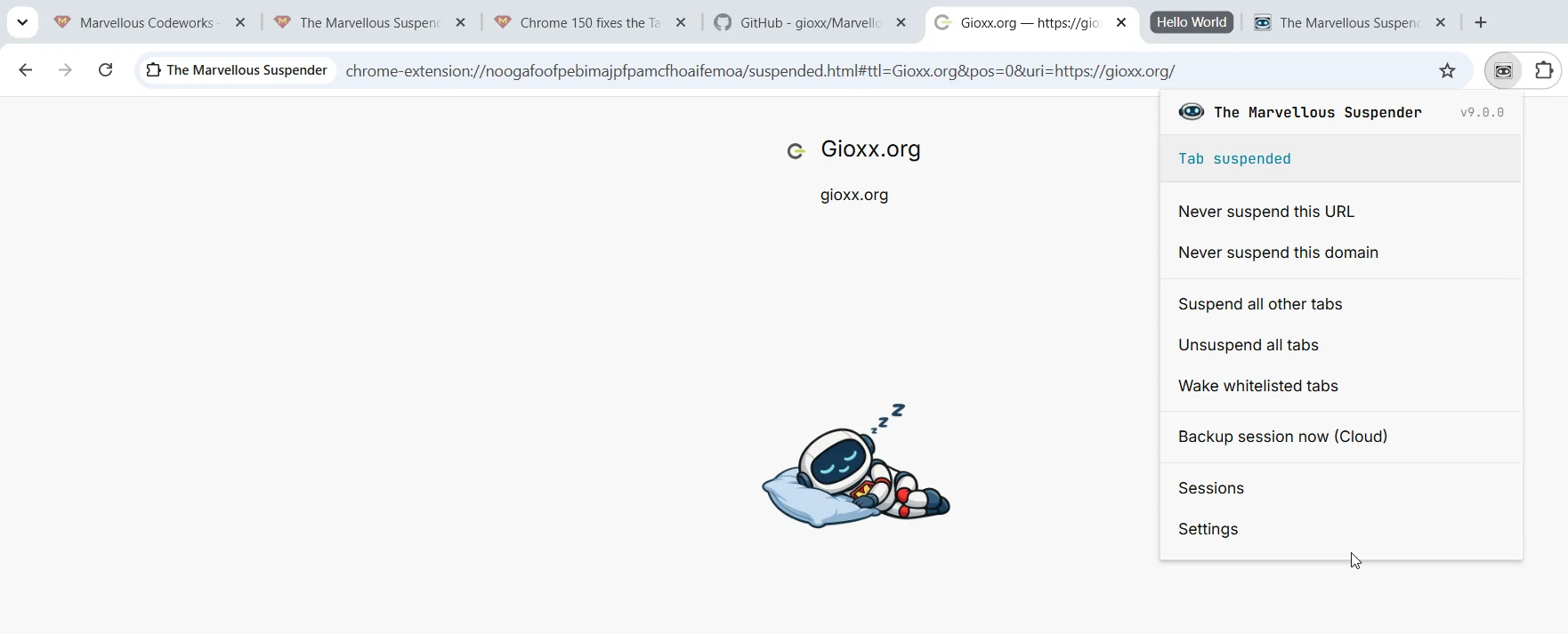
At the top of the popup, TMS shows the current tab's status and, for several statuses, an inline action link:
| Status shown | Meaning | Inline action |
|---|---|---|
| Normal / Active | Tab will be suspended automatically per your timer | Pause - excludes this tab from auto-suspend until it's next reloaded |
| Suspended | Tab is already suspended | - |
| Never | Auto-suspend is disabled (Suspend automatically after = Never) | - |
| Whitelisted | Tab's URL matches an entry in your never-suspend list | Remove from whitelist |
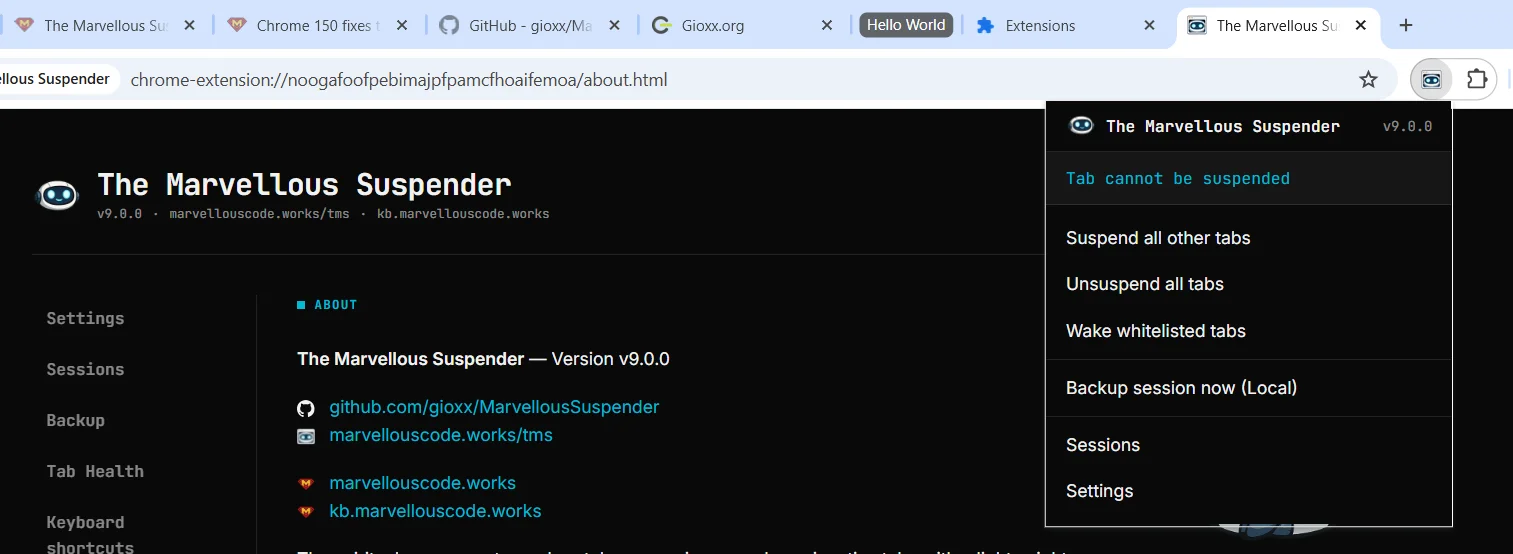
| Special | An internal/unsuspendable page (e.g. chrome://, the Chrome Web Store) | - |
| Audible | Tab is playing audio and is excluded from auto-suspend | - |
| Unsaved form data | TMS detected an active, unsaved form and is excluding the tab | Unpause |
| Pinned | Tab is pinned and excluded from auto-suspend | - |
| Paused | You manually paused this tab | Unpause |
| No connectivity | Browser is offline and Only suspend when connected is enabled | - |
| Charging | Device is on power and Only suspend when on battery is enabled | - |
| App window | Added in 9.0.3. Tab is open in an app-mode window and excluded from auto-suspend | - |
| Local file blocked | TMS lacks permission to read this local file | Grant permission → opens the file permissions prompt |
If a scheduled Google Drive backup recently failed, a red banner appears above the menu, click it to jump straight to Backup & Sync and reconnect.
Example of the Special status, shown here on an internal extension page (dark theme):
Current tab
| Menu item | Effect |
|---|---|
| Unsuspend tab | Reloads the current tab in its normal state (shown only if suspended) |
| Suspend tab | Suspends the current tab immediately, bypassing the inactivity timer |
| Never suspend this page | Adds the exact URL to the never-suspend list |
| Never suspend this domain | Adds the domain (matches all pages on it) to the never-suspend list |
Selected tabs
Shown only when more than one tab is highlighted in the tab strip (Shift/Ctrl-click).
| Menu item | Effect |
|---|---|
| Suspend selected tabs | Suspends every highlighted tab |
| Unsuspend selected tabs | Unsuspends every highlighted tab |
All tabs
| Menu item | Effect |
|---|---|
| Suspend other tabs | Suspends every tab in the current window except the active one (a "soft" suspend, see keyboard shortcuts for the "force" variant, which also suspends the active tab) |
| Unsuspend all tabs | Unsuspends every tab in the current window |
| Unsuspend whitelisted tabs | Unsuspends only the tabs in the current window that match an entry in your never-suspend list, useful right after editing that list |
Backup
Shown only when automatic backup is enabled in Settings. The label reflects your configured destination:
| Label | Effect |
|---|---|
| Back up now (local) | Immediately runs a local session backup |
| Back up now (Drive) | Immediately runs a Google Drive session backup |
Navigation
| Menu item | Effect |
|---|---|
| Session Manager | Opens Session Management in a new tab |
| Settings | Opens Settings in a new tab |
Right-click context menu
If Enable context menu is on in Settings → General, right-clicking any tab (or a link on a page) exposes the same current-tab and bulk actions found in the popup, plus two extras not present in the popup:
| Context menu item | Effect |
|---|---|
| Open link in a suspended tab | Right-click a hyperlink on any page to open it directly in a new, already-suspended tab, without ever loading it live |
| Toggle pause suspension | Equivalent to the popup's Pause/Unpause action, available as a direct one-click toggle |
| Suspend all tabs in this group | Added in 9.0.3. Suspends every tab sharing the right-clicked tab's group. Available both in the page context menu and by right-clicking a tab in the tab strip; no-op on an ungrouped tab |
| Unsuspend all tabs in this group | Added in 9.0.3. Unsuspends every tab sharing the right-clicked tab's group. Same availability and no-op behavior as above |
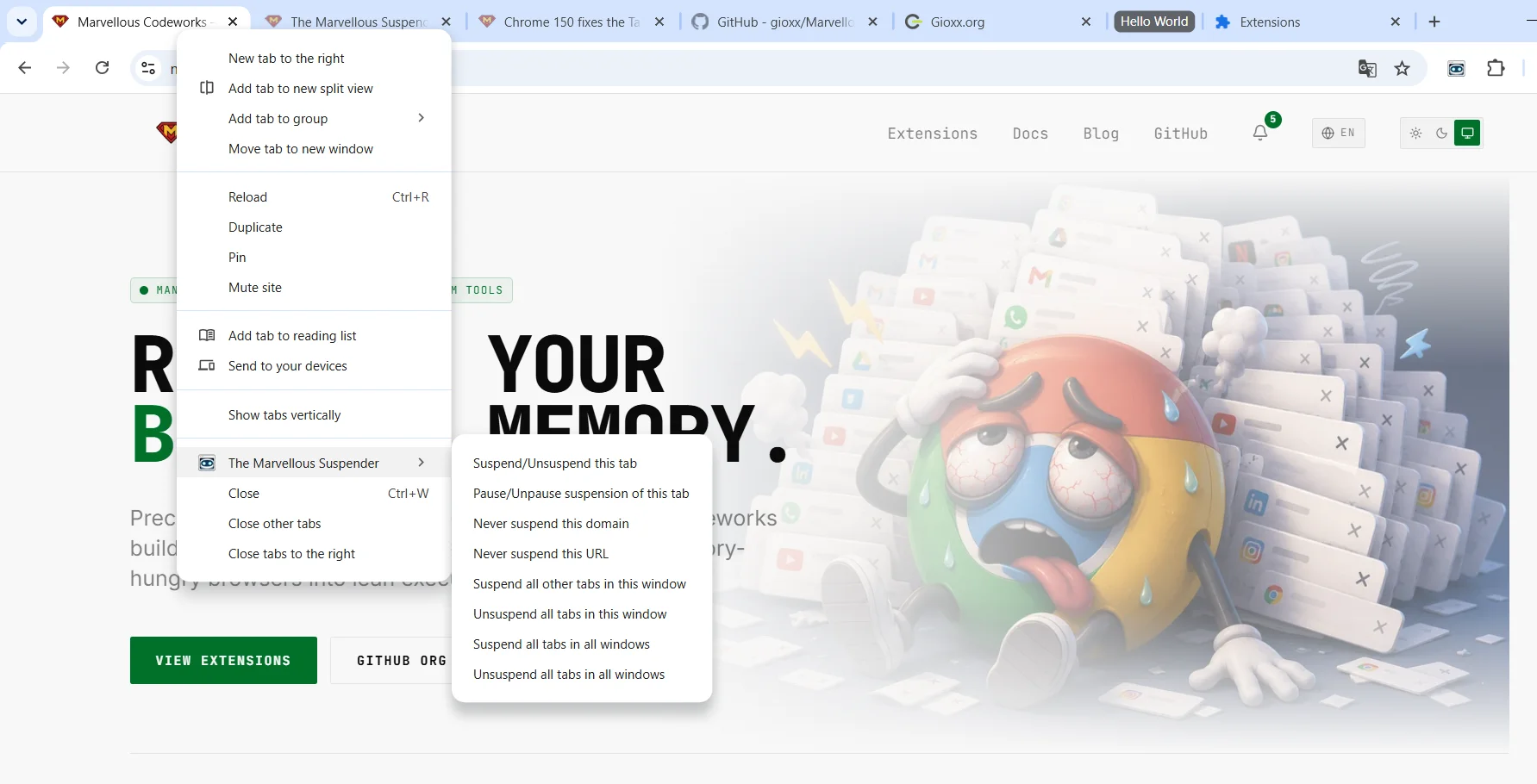
The context menu is unavailable in Incognito windows regardless of the setting.
Local file permissions
Some TMS actions need to read a local file:// URL (e.g. resuming a suspended tab that pointed at a local file). If Chrome hasn't granted the extension access to local files, the popup shows a Local file blocked status with a Grant permission link that opens TMS's own permissions page, which in turn links to chrome://extensions/ → TMS → Details, where you can enable Allow access to file URLs. See System & recovery pages for details.